
Anime Nexus RNG Unit Management: Inventory, Teams and Transfers
Use Units to find specific copies, manage saved teams and clear collection space. Visit Mei Hatsume for permanent storage expansions and Natsuko to transfer Shiny status and eligible variant properties.
Load a team, edit it with Equip or Unequip, then Save. Use Sell > Copies to select extras while keeping each unit’s best normal and best Shiny copy. Mei’s Unit Storage +50 costs 150,000 Yen and 1,500 Gems per expansion, with eight expansions taking base capacity from 200 to 600 slots. At Natsuko, select Your unit, select a matching Shiny donor and confirm; the donor is consumed.
Search and inspect units
- Open Units and enter a unit’s name or part of its name in Search units. Search also displays how many copies you own.
- Sort by Damage or Rarity.
- Open Filter to combine multiple selections under Rarities, Elements and Tags. Use Show Only for Shiny, Locked or Evolvable units. Active filters stay available so you can turn them off.
- Select the intended copy to open its management panel. Green checkmarks identify copies equipped in the current team.
The selected-unit panel shows its level, Takedowns, trait and next-level cost. Use +1 Level, +5 Levels or +10 Levels to increase its level.
Its controls include Equip or Unequip, Sell, Unit Detail, Passives, Reroll Trait, Reroll Stats, Wear Cosmetic, Evolve, Max Upgrade, Curse and Forge. Use Unit Detail and Passives to inspect the copy before investing in it. For unit forms, attributes and acquisition routes, browse the unit directory.
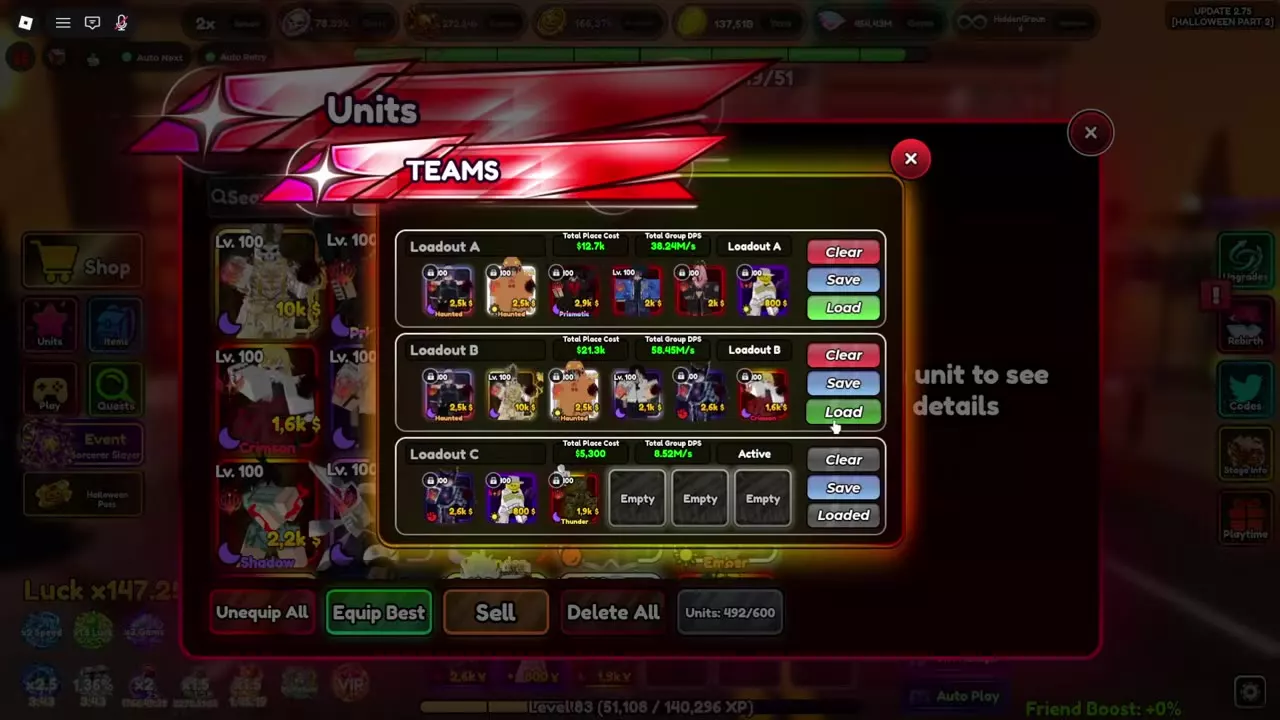
Save Teams A, B and C
Units provides three saved loadouts: A, B and C.
- Open Teams from Units and choose the loadout to edit.
- Press Load to activate it. The loaded preset is marked Loaded.
- Select individual copies and use Equip or Unequip to change the active lineup. Green checkmarks show the equipped copies.
- Return to Teams and press Save for the intended loadout.
Unequip All clears your currently equipped lineup while retaining its saved loadout. Use it to rebuild the active team without immediately erasing the preset. The Teams window also provides a Clear control for loadouts.
Equip Best fills a team automatically. Treat it as a starting lineup, then replace units to supply the control, income and support your damage dealers need. A lineup with the highest displayed damage does not automatically cover those roles; use the farming team guide to choose the combination.
Each loadout displays Total Place Cost and Total Group DPS. Compare the deployment budget alongside DPS when choosing which team to load.
Sell copies and protect units
Lock copies you want to retain before clearing inventory.
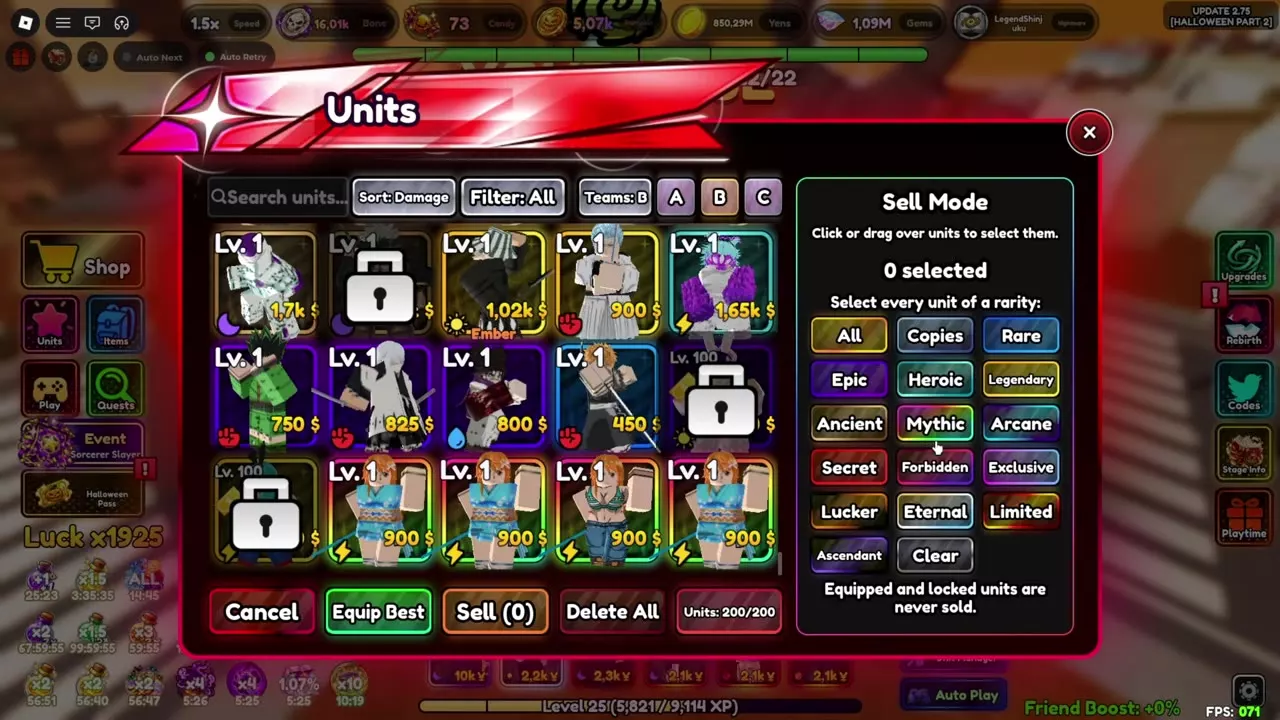
- Open Units > Sell.
- Click individual copies or drag across them to select several. Use All, Copies or a rarity button for a larger selection.
- Check the selected count. Press Clear to reset the selection, Sell to sell the selected copies or Cancel to leave Sell Mode.
Copies selects extra normal and Shiny copies while keeping one best normal copy and one best Shiny copy of each unit. Lock any additional copies you want to preserve for another build or transfer.
Rarity selections include Rare, Epic, Heroic, Legendary, Ancient, Mythic, Arcane, Secret, Forbidden, Exclusive, Lucker, Eternal, Limited and Ascendant.
Inventory protections
- Equipped and locked copies are protected from inventory selling.
- Copies saved in loadouts are protected from mass selling and Delete All.
- Shinjo is automatically locked against accidental selling or deletion.
- Garou cannot be sold.
- Selling a Shiny copy leaves its obtained entry in the Shiny Index.
Combat Sell All
Sell All in the battle’s Units Manager sells all placed units. Inventory locks do not block that action. Use inventory Sell Mode to clear collection space; combat Sell All manages units already on the field.
Expand storage
Base unit storage starts at 200 slots. Each Unit Storage +50 expansion permanently adds 50 slots, with up to eight expansions for 600 base slots.
- Check the used and available storage in Units. Clear unwanted copies through Sell Mode if you need immediate space.
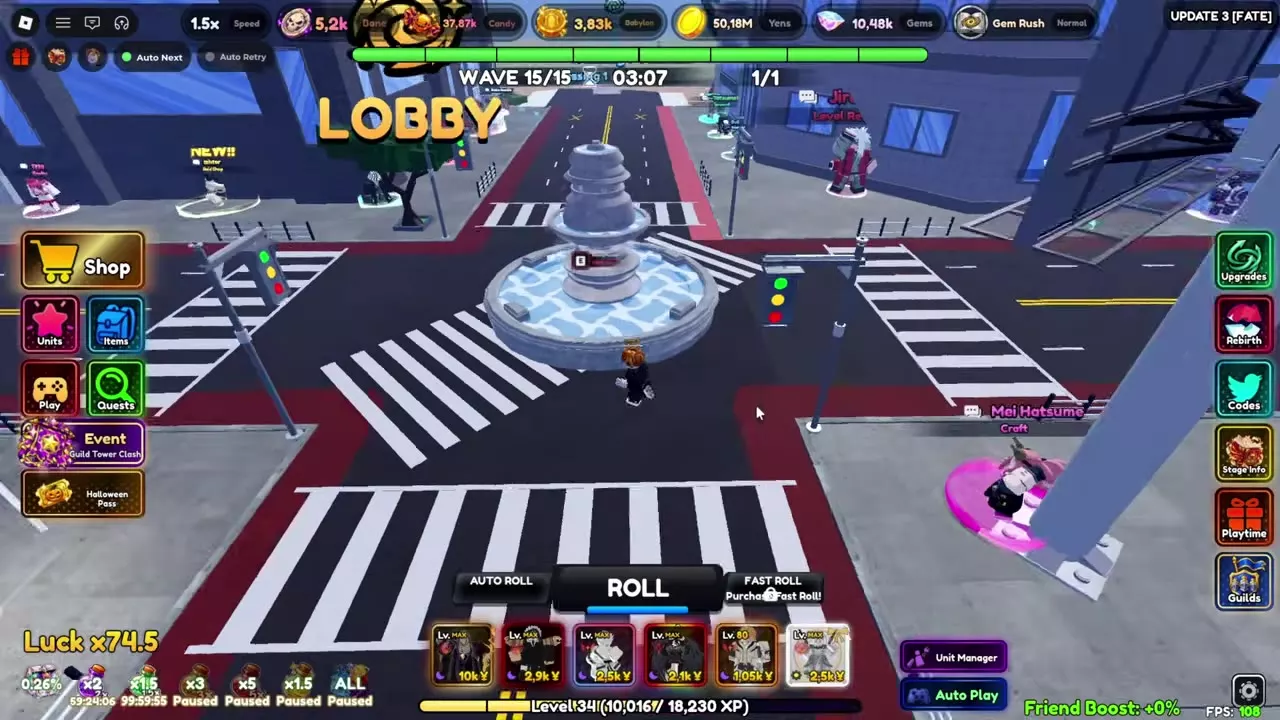
- Visit Mei Hatsume in the lobby and choose Craft.
- Select Unit Storage +50. Each expansion costs 150,000 Yen and 1,500 Gems.
- Craft the expansion to increase your permanent capacity.
The Extra Unit Storage Game Pass is a separate purchase priced at 40 Robux. The 600-slot figure is the base capacity reached through the eight crafted expansions.
Free space before using large Roll Ticket batches: their result summaries separately count units sold because storage was full. For Mei’s other recipes, see the crafting table.
Shiny, Mutation and Serial Transfer
Talk to Natsuko to open the Shiny Transfer, Mutation Transfer and Serial Transfer tabs. Compare the receiving copy with the donor first: a copy that is already Shiny and has the stronger mutation gains neither upgrade from a weaker donor.
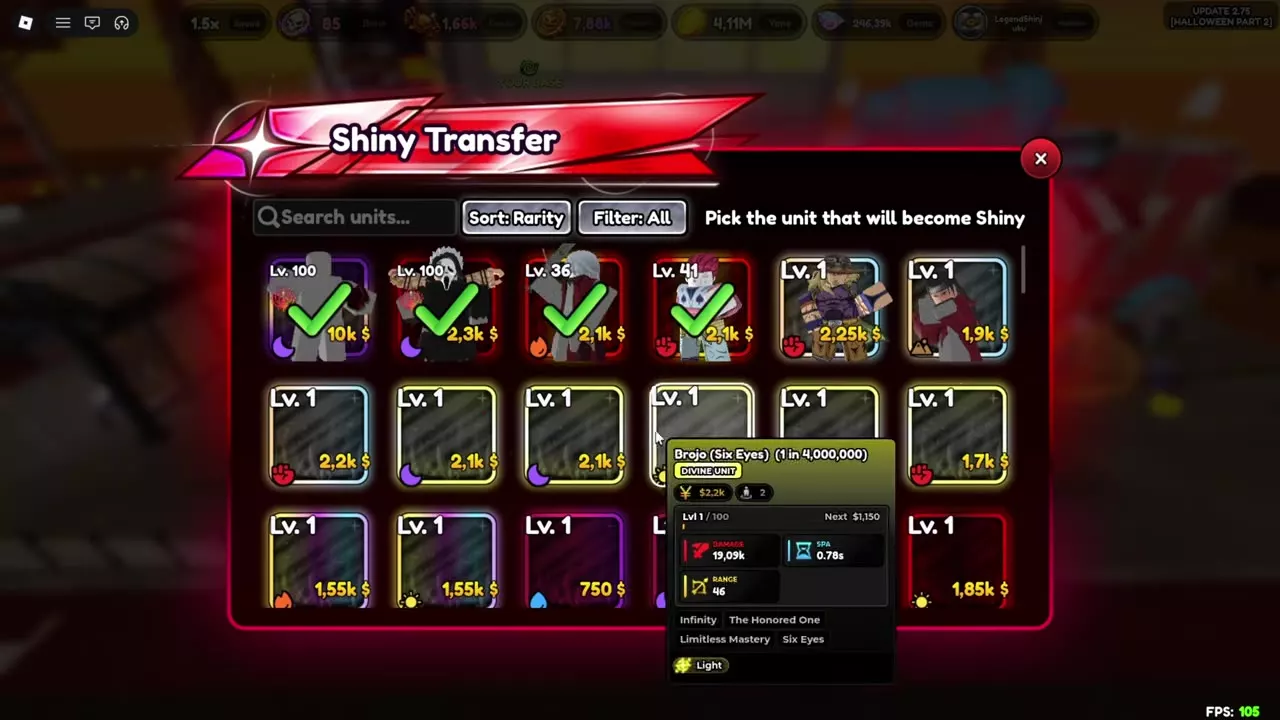
Shiny Transfer
Prepare the unit you want to keep and a Shiny copy of the same unit.
- Open Shiny Transfer at Natsuko.
- Select Your unit first—the copy that will receive Shiny status.
- Select the matching Shiny copy as the donor.
- Press Confirm. The donor is consumed, your receiving unit becomes Shiny and the game displays Shiny Transfer successful!
Unavailable copies
Locked copies are visible in the Mutation, Shiny, Serial and Hogyoku Transfer lists, but you must unlock them before selecting them. In Shiny Transfer, the interface explains when a copy is unavailable because it is locked, equipped or on an expedition. Unlock, unequip or remove the copy from its expedition as required before selecting it.
Mutation and Serial Transfer
For Mutation Transfer, open its tab and select the receiving unit. The picker supports search, rarity sorting and filtering.
When a Mutation Transfer donor carries both a mutation and Haunted, both properties transfer to the receiving unit. Shiny Transfer and Serial Transfer also preserve the Haunted mark and the stronger mutation from the copy used.
Garu and his evolved forms support Shiny, Serial and Mutation Transfer across forms. For the bonuses and combinations behind these properties, see mutations, Shiny and serialized units.
Automation and unit development
- Set rules for newly obtained units in Auto Settings and Auto Sell. Inventory Copies handles duplicates already in your collection.
- Use the battlefield Units Manager for deployed-unit upgrades, guarding and selling.
- Choose a unit’s next investment through its Units panel: level controls, Reroll Trait, Reroll Stats, Max Upgrade, Evolve, Curse and Forge provide its development entrances.