
Anime Nexus RNG Settings: Auto Play, Auto Sell and Cutscenes
Set up automatic battles, keep the units and portals you want, and control interruptions from cutscenes. Battle automation, ordinary rolls, portal drops and banner sales each have separate controls.
Open Settings > Auto to configure Auto Start for repeating stages, Auto Next for advancing after wins and Auto Retry for retrying defeats. Use the battle-screen Auto Play button for placement. Configure Auto Sell separately for ordinary rolls, Shiny rolls, portals and banners. To end a run and suspend automatic starts, open Settings > Match > Stop Match and press STOP twice.
Find and save settings
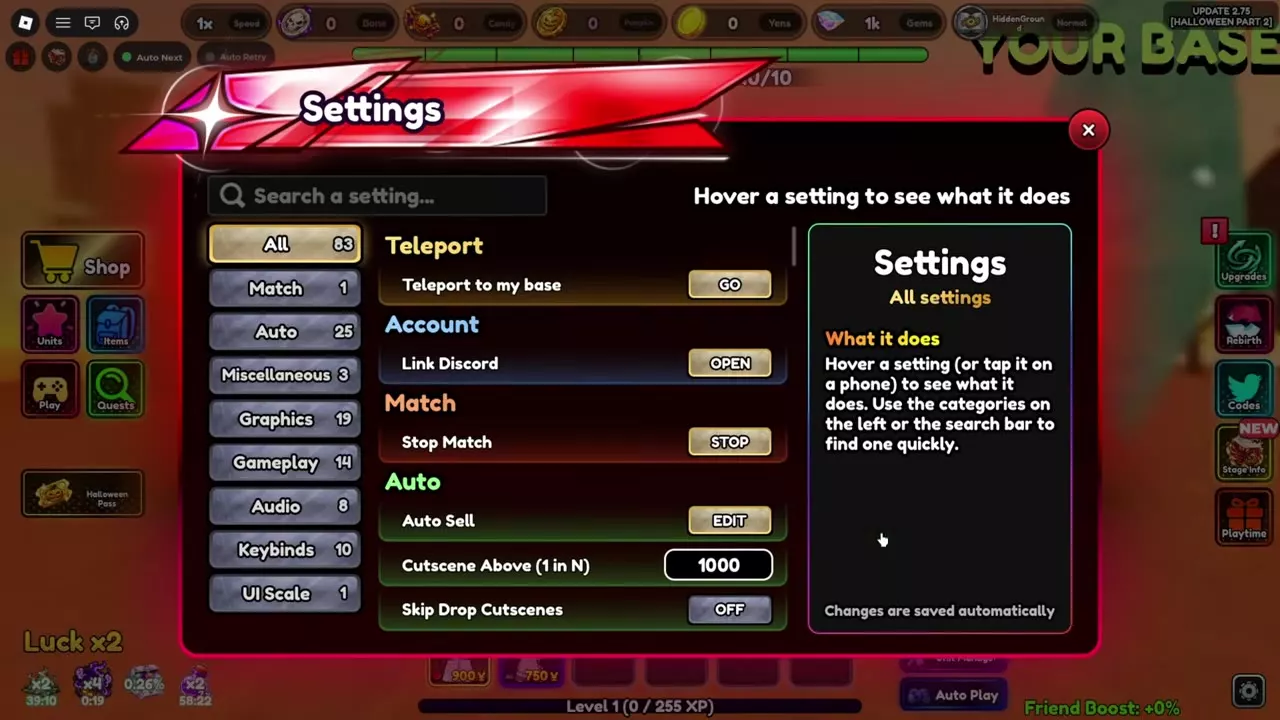
Open Settings, then type an option name into the search field or choose a category. Hover an option to read its description and current value. Changes save automatically.
The category list includes All, Match, Auto, Miscellaneous, Graphics, Gameplay, Audio, Keybinds and UI Scale. Use Auto for automatic match and roll controls, Match for Stop Match, and search for a specific setting when you already know its name.
Normal rolls and Shiny Auto Sell
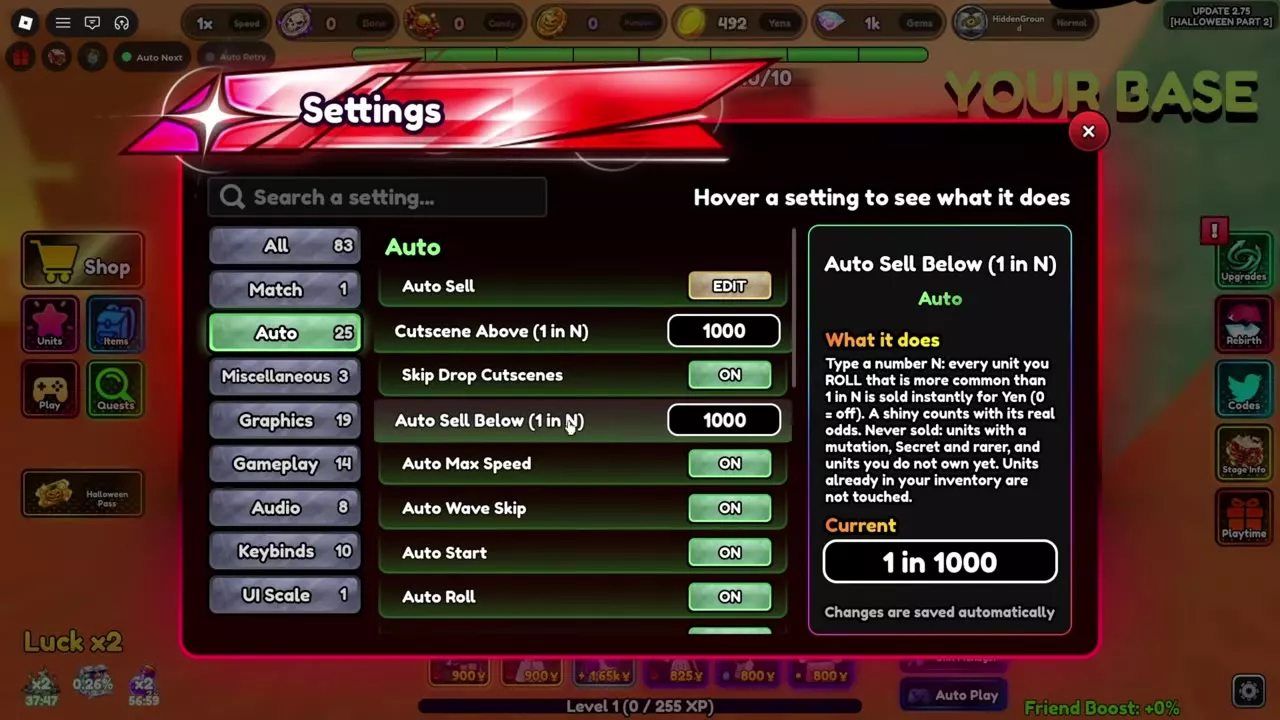
Auto Sell Below
Open Settings and find Auto Sell Below (1 in N). Enter a denominator to sell newly rolled units more common than that probability for Yen. Enter 0 to turn this threshold rule off.
For example, setting N to 1,000 sells eligible rolls more common than 1 in 1,000. Shiny units are compared using their actual probability.
This threshold rule keeps:
- Units with a mutation.
- Secret-or-rarer units.
- A unit you have never owned before.
It leaves units already in your inventory unchanged.
Rarity selections and the Shiny tab
Open Auto Sell > EDIT to configure rarity selections. The editor covers rolled units, capsule units, units returned by Explore squads and owned relics, with unit selection modes for all, non-Shiny or mutated units.
For ordinary Shiny rolls and Roll Tickets, open Auto Sell > Shiny and select the rarities you want sold. Matching Shiny results sell immediately for Yen. This Shiny rule never sells Limited or Ascendant units.
The threshold's mutation, Secret and first-owned protections belong to the threshold rule. Configure the rarity editor and Shiny tab separately for the results you want to keep.
Roll Ticket x100 applies Auto Sell settings to its instant rolls. Its result summary lists the number sold, Yen received and the portion sold because storage was full. Use inventory and storage management to clear existing copies or expand storage.
On a controller, use the menu cursor to click rarity selections in Auto Sell and Auto Delete.
Pumpkin and Gates Auto Sell
Open Auto Sell > Gates and select the Gate I–V tiers you want sold. A newly obtained Gate of a selected tier sells immediately for Gems. Gates already in your bag remain there, and the Secret Gate is never sold by this rule.
Use the separate Pumpkin tab or Portal Auto Sell > EDIT entry to configure Pumpkin Portal selling. The Pumpkin and Gates tabs remain available so you can unselect tiers, including Gates you selected earlier.
Overflow and protected portals
When the portal collection exceeds 200, the overflow sale rule applies only to portals dropped at the end of a run. It keeps reward portals, including the Portal V awarded at Haunted Tower floor 100.
- Phantom Portal VI is never removed by Portal Auto Sell.
- A Pumpkin Portal returned after a win is kept and never automatically sold.
Choose tiers according to which new drops you want to retain; changing Gates selections does not clear your existing Gate inventory.
Halloween and Spiral Banner sales
Halloween Banner
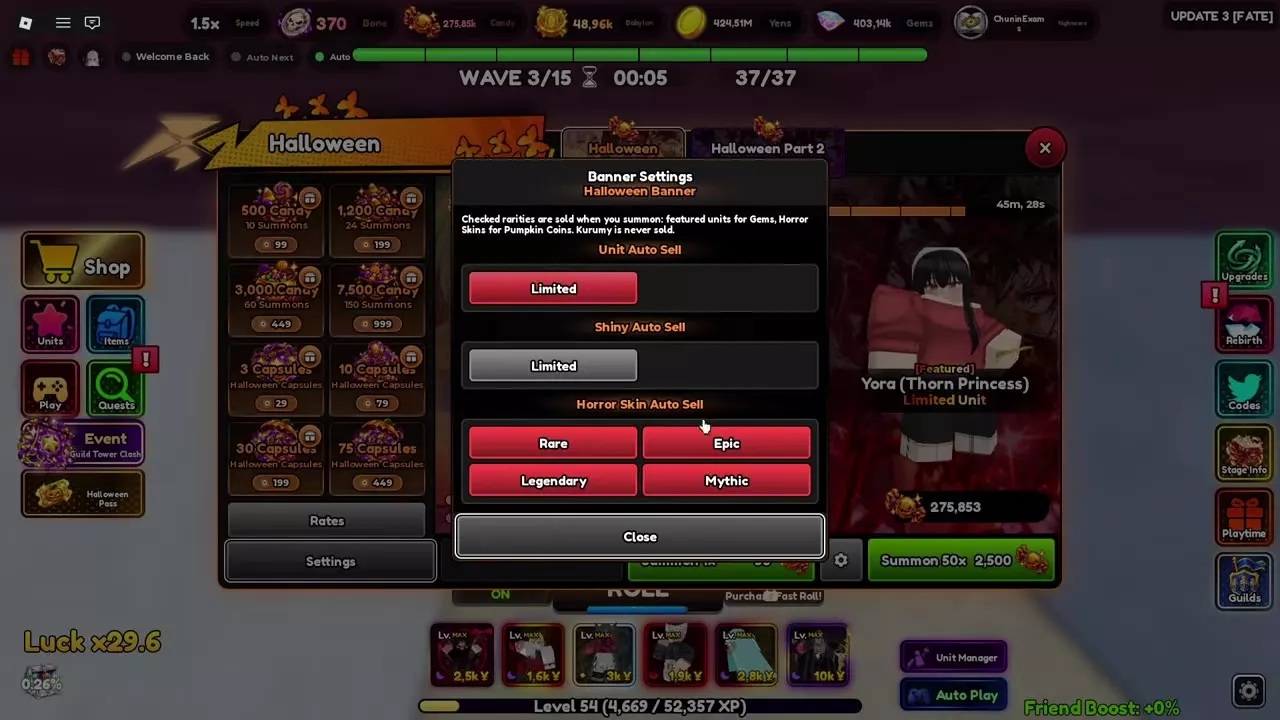
Open Halloween Banner > Settings. Set Limited under Unit Auto Sell and Limited under Shiny Auto Sell independently. Then select the Horror Skin rarities you want sold.
To sell normal Limited units while keeping Shiny Limited units, enable Unit Auto Sell > Limited and leave Shiny Auto Sell > Limited disabled. Enabled selections are red; disabled selections are gray.
Selected Featured units sell for Gems. A sale result of 400 Gems for one unit, or 800 Gems for two, is an example of those particular results. The Unit Auto Sell rule keeps mutated Featured units, and the banner settings never sell Kurumy.
Horror Skin Auto Sell has separate Rare, Epic, Legendary and Mythic selections. Selling a skin or receiving one you already own returns Pumpkin Coins:
| Horror Skin rarity | Pumpkin Coins |
|---|---|
| Rare | 3 |
| Epic | 6 |
| Legendary | 12 |
| Mythic | 25 |
Leave a skin rarity unselected when you want to keep newly obtained skins of that rarity.
Spiral Banner
Open Spiral Banner > Banner Settings and find Mutated Auto Sell. This row is off by default. Select a rarity to sell its mutated units too.
Never Sell takes priority: units on that list are kept even when their rarity is selected under Mutated Auto Sell. Leave the row disabled when you want to retain mutated results.
Use the banner directory to compare summon currencies, costs and pity targets.
Auto Play, Start, Next and Retry
Use the Auto Play button on the battle screen to automate placement. Open Units Manager and use each unit's Auto Upgrade control to automate upgrades. Placement and upgrading have separate controls.
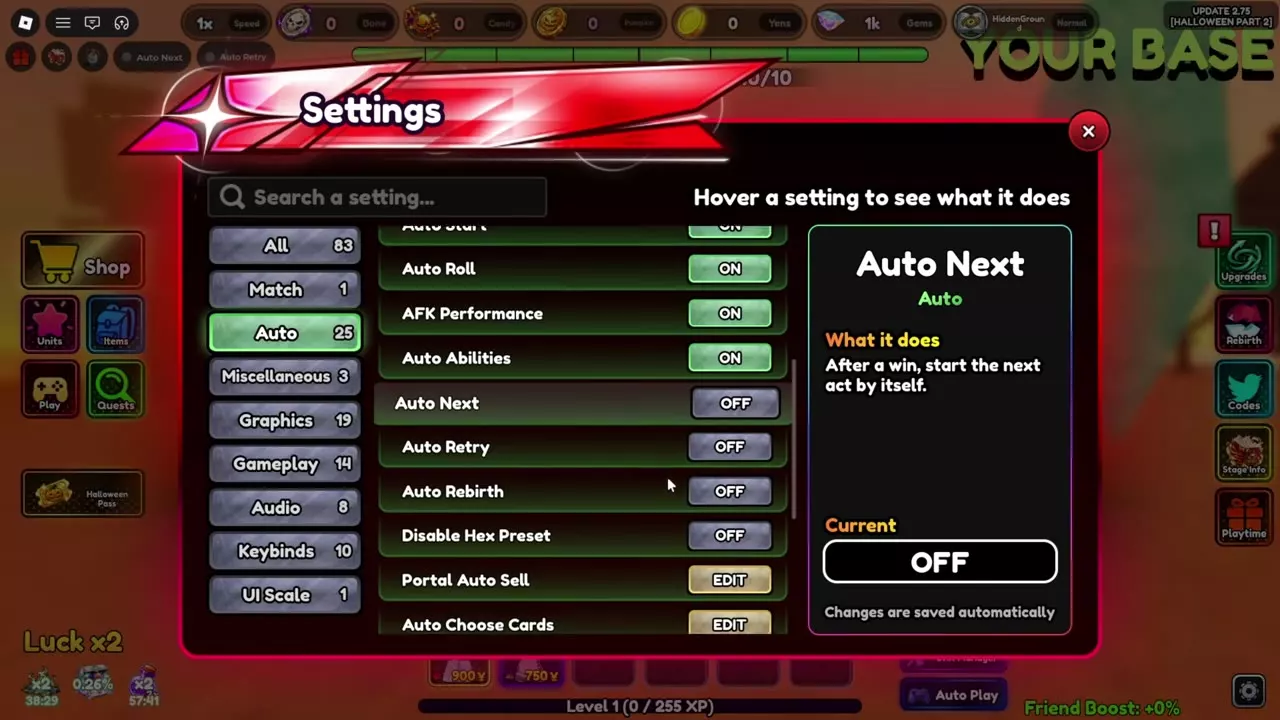
Open Settings > Auto to choose how matches continue:
| Control | Action |
|---|---|
| Auto Start | Repeat the last stage |
| Auto Next | Next act after victory |
| Auto Retry | Same act after defeat |
| Auto Roll | Repeat rolls |
| Auto Max Speed | Fastest available stage speed |
| Auto Wave Skip | Automatic wave skipping |
- Auto Start restarts the same stage after a match and starts your last stage when you return. Choose it when you want to repeat a stage.
- Auto Next starts the next act after a win. Choose it to progress through acts. In Assault, it advances through the acts, then replays Act 3; Assault Infinite also replays. In replayable modes such as Gem Rush, Next Act starts that mode again.
- Auto Retry restarts the same act after defeat. It also has an Auto toggle at the top of the screen. If the run cannot restart, Auto Retry stops; it does not send you to Boss Rush. A Daily Challenge already won that day does not restart automatically.
Enable Fast Auto Restart to start the next match immediately without the Victory or Defeat screen. Enable Auto Max Speed to select your fastest available speed when a stage starts. Auto Wave Skip remains a separate setting.
Auto Roll starts another roll after each completed roll. Use the rolling and Roll Ticket guide for roll controls and ticket batches.
If Auto Play is enabled while the game is loading, it starts when loading finishes. It stays enabled after dying or restarting in Night of the Undead. In a portal party, non-host players see Waiting for the host on the end screen.
Stop a match
- Open Settings > Match.
- Find Stop Match and press STOP twice to confirm.
- Launch a stage yourself when you want automatic matches to resume.
Stopping ends the current match as a defeat. Automatic match starting stays suspended until you launch a stage, so the run does not immediately start again.
Cutscenes and AFK Performance
Skill and drop cutscenes
Search cuts in Settings to find Skip Cutscenes. Enable it to skip ability and domain cutscenes. Enable Skip Drop Cutscenes separately to skip drop cutscenes.
For rarity-triggered reveals, set Cutscene Above (1 in N). A newly rolled unit rarer than 1 in N plays a cutscene before its reveal. The default denominator is 1,000; enter 0 to disable these pre-reveal cutscenes. Shiny units use their actual probability.
The threshold also applies to Arucard, Makema, Pucchi, Madaro, Hashiramo and Ichuga x Ulquiarro. Large threshold values persist after rejoining. A drop obtained during a mini game waits until the mini game ends to play its cutscene. Use the Skip button to skip a cutscene manually.
AFK display controls
Enable AFK Performance to reduce the display load while away. After five minutes of inactivity, or after reconnecting from AFK, it disables effects, damage numbers and tags and enables Performance Mode. Move to restore the display.
Enable Disable Wear Pose to wear a unit's appearance while keeping your avatar's pose. Use Teleport to my base > GO to return directly to your island's spawn point.
Mode-specific continuation
- Pumpkin Portal replay and recovery covers replay, AFK continuation and party recovery.
- Gate of Babylon automatic runs covers repeated Gate runs and host-controlled continuation.
- Infinite restart and resume covers restart-wave settings, manual restarting and reconnect recovery.
- Combat controls and Units Manager covers individual Auto Upgrade controls, automatic abilities, Guard and downed-unit replacement.